
Thank You Page for WooCommerce PRO – Rules Page Documentation
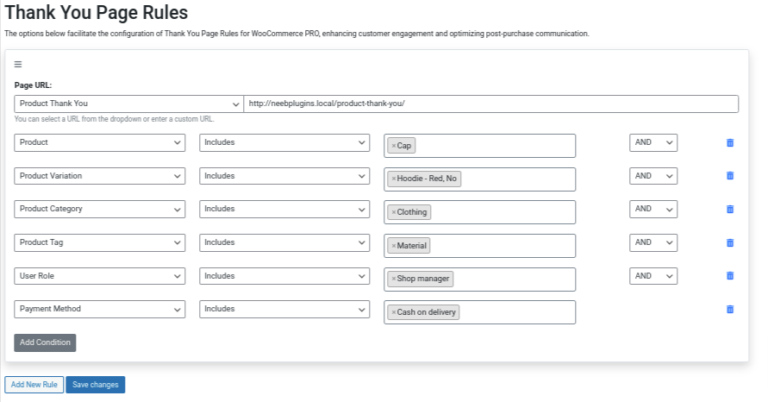
The Rules Page in the Thank You Page for WooCommerce PRO plugin allows you to create dynamic rules to customize and control the Thank You page redirection based on specific order details. This gives store owners the flexibility to define custom experiences for their customers based on various order attributes such as products, categories, user roles, payment methods, and more.
Overview
This page provides the ability to set conditional rules for redirecting customers to a specific Thank You page after they complete a purchase. Each rule is built by combining conditions, such as products bought, user roles, or payment methods, to determine where customers are redirected.
Key Sections and Settings
1. Page URL
- Description: This is the URL where customers will be redirected if all the conditions in the rule are met.
- How to Use:
- You can either select a predefined Thank You page from the dropdown list or manually enter a custom URL.
- Example:
http://neebplugins.local/product-thank-you/
- Recommendation: Ensure the URL is valid and points to an existing page that provides a good post-purchase experience for your customers.
2. Conditions
Conditions allow you to specify the criteria that must be met for a customer to be redirected to the defined Thank You page. You can add multiple conditions, and they are evaluated together to determine if the rule should be applied.
a) Product
- Description: This condition is used to include or exclude customers based on specific products they purchased.
- How to Use:
- Select “Product” from the dropdown.
- Choose whether the rule “Includes” or “Excludes” the selected products.
- Use the field on the right to add specific products.
- Example: “Includes Cap” – this rule applies if the customer has purchased a Cap.
b) Product Variation
- Description: This condition targets specific product variations, such as size or color, within a product.
- How to Use:
- Select “Product Variation” from the dropdown.
- Choose whether the rule “Includes” or “Excludes” the selected variation.
- Enter or search for specific product variations.
- Example: “Includes Hoodie – Red, No” – this applies if the customer bought a red variation of a hoodie with a specific option.
c) Product Category
- Description: Allows redirection based on the category of the product the customer purchased.
- How to Use:
- Select “Product Category” from the dropdown.
- Choose whether the rule “Includes” or “Excludes” specific categories.
- Enter the categories in the field.
- Example: “Includes Clothing” – applies if the purchased products fall under the Clothing category.
d) Product Tag
- Description: This condition can redirect customers based on product tags applied to the purchased products.
- How to Use:
- Select “Product Tag” from the dropdown.
- Choose whether the rule “Includes” or “Excludes” specific product tags.
- Add product tags in the field.
- Example: “Includes Material” – applies if the purchased products are tagged with ‘Material.’
e) User Role
- Description: This condition allows you to set redirection based on the role of the customer (e.g., Shop manager, Subscriber).
- How to Use:
- Select “User Role” from the dropdown.
- Choose whether the rule “Includes” or “Excludes” specific user roles.
- Enter the user role.
- Example: “Includes Shop manager” – applies if the user making the purchase has the ‘Shop manager’ role.
f) Payment Method
- Description: Allows you to specify a Thank You page redirection based on the payment method used.
- How to Use:
- Select “Payment Method” from the dropdown.
- Choose whether the rule “Includes” or “Excludes” specific payment methods.
- Select or search for payment methods like PayPal, Stripe, Cash on Delivery, etc.
- Example: “Includes Cash on delivery” – applies if the customer chose Cash on Delivery as their payment method.
g) Shipping Method
- Description: This condition allows you to redirect customers based on the shipping method they selected during checkout. It’s useful if you want to customize the Thank You page for customers choosing Free Shipping, Local Pickup, or other carrier-based shipping methods.
- How to Use:
- Select “Shipping Method” from the dropdown.
- Choose whether the rule “Includes” or “Excludes” specific shipping methods.
- Select or search for shipping methods such as Flat Rate, Free Shipping, Local Pickup, or methods provided by third-party carriers.
- Example:
- “Includes Free Shipping” → applies if the customer chose Free Shipping at checkout.
- “Excludes Local Pickup” → applies if the customer did not choose Local Pickup.
3. Add Condition
- Description: This button allows you to add more conditions to your current rule. You can create complex rules by combining multiple conditions.
- How to Use:
- Click the Add Condition button to create another condition in the rule.
- Each condition can be combined with others using logical operators (AND/OR).
4. AND/OR Condition Selector
- Description: This dropdown appears when multiple conditions are added. It allows you to define whether the conditions should be evaluated using the AND or OR logic.
- How to Use:
- AND: All conditions must be met for the rule to apply.
- OR: At least one condition must be met for the rule to apply.
5. Add New Rule
- Description: Allows you to create a new rule with a different set of conditions and a different Thank You page.
- How to Use:
- Click the Add New Rule button to create a fresh rule setup.
- Each rule operates independently and can target different sets of conditions and customers.
6. Delete Rule or Condition
- Description: If you wish to remove a rule or a specific condition within a rule, you can click the trash icon to delete it.
- How to Use:
- Click the trash icon next to a condition or rule to remove it from the current setup.
- Note: Be careful when deleting rules or conditions as this may alter your redirection logic.
7. Save Changes
- Description: Once you have created or updated your rules, click the Save Changes button to ensure all changes are applied.
- How to Use:
- After configuring all your rules and conditions, click Save Changes to save your customizations.
Example Rule Setup
Let’s assume you want to create a rule that redirects customers to a specific page based on their product and payment method. You could configure a rule like this:
- Page URL:
http://neebplugins.local/product-thank-you/ - Conditions:
- Product: Includes “Cap”
- Payment Method: Includes “Cash on delivery”
- AND/OR Selector: Select AND
- Add New Rule if you want to create a separate rule for different conditions.
With this rule, when a customer buys a “Cap” and pays via “Cash on delivery,” they will be redirected to http://neebplugins.local/product-thank-you/ upon completing their order.
Common Rule Scenarios
Here are a few real-world examples of rules you can build using the conditions covered above. Replace the example page URLs, categories, and user roles with your own store’s data.
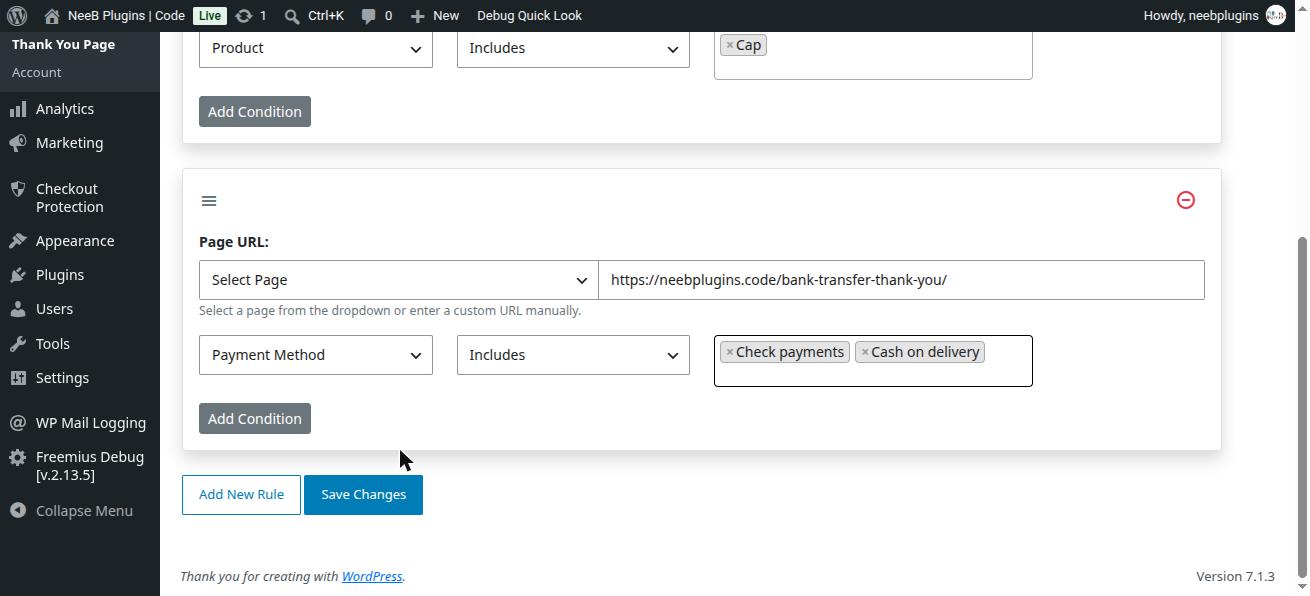
1. Bank Transfer and Cash on Delivery
Redirect customers to a dedicated Thank You page whenever they pay using Bank Transfer (Check payments) or Cash on Delivery.
- Page URL:
https://neebplugins.code/bank-transfer-thank-you/ - Conditions:
- Payment Method: Includes “Check payments”, “Cash on delivery”
2. Online Course / Digital Product Category
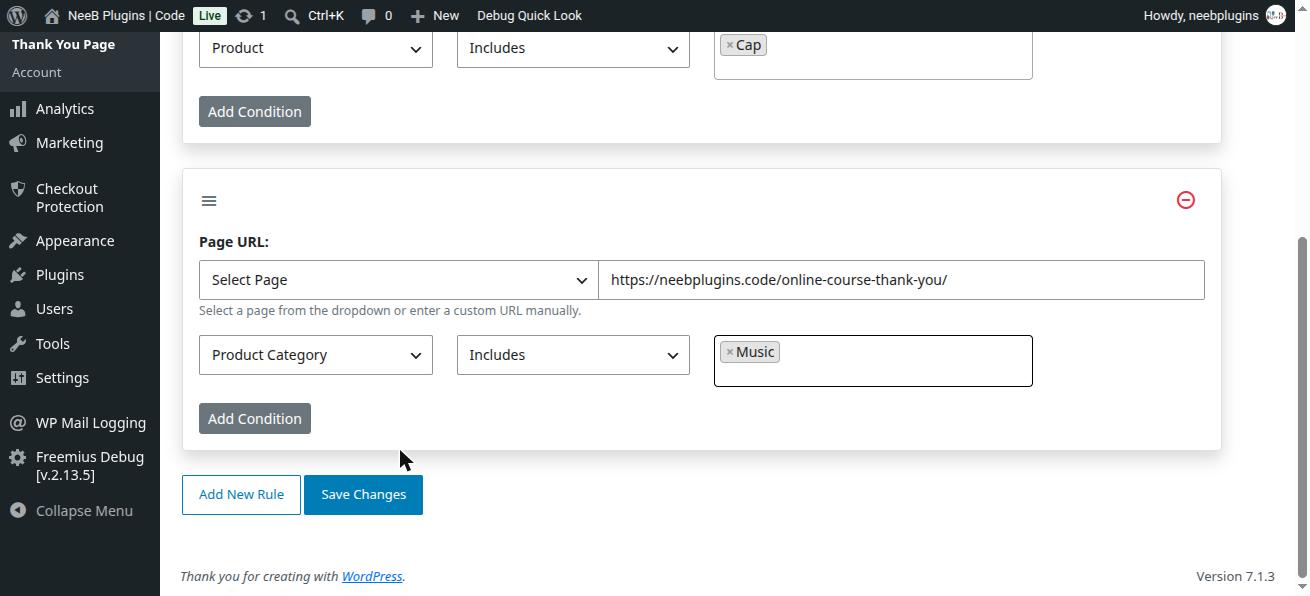
Redirect customers who purchase from a specific product category (for example, an “Online Courses” category) to a page with onboarding instructions or access links.
- Page URL:
https://neebplugins.code/online-course-thank-you/ - Conditions:
- Product Category: Includes “Online Courses”
This demo store doesn’t have an “Online Courses” category, so the screenshot below uses the “Music” category as a stand-in — select whichever category matches your own store’s products.
3. Wholesale Customers
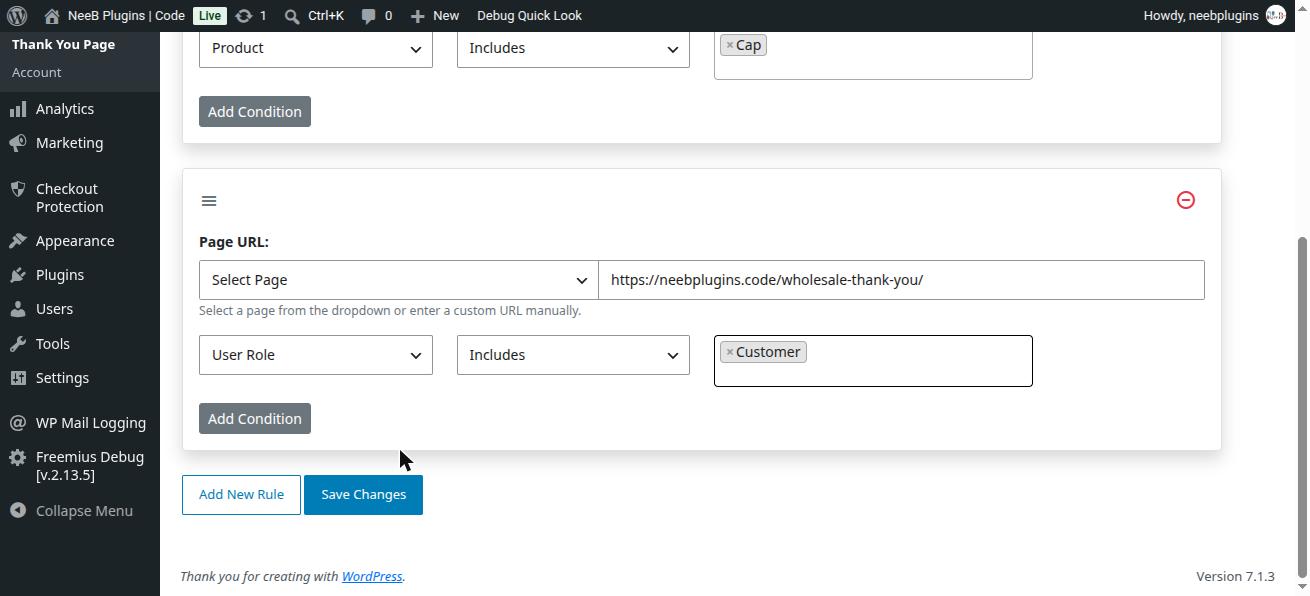
Redirect customers with a specific user role (for example, a “Wholesale Customer” role added by your membership or B2B plugin) to a page with wholesale ordering details.
- Page URL:
https://neebplugins.code/wholesale-thank-you/ - Conditions:
- User Role: Includes “Wholesale Customer”
This demo store doesn’t have a “Wholesale Customer” role, so the screenshot below uses the “Customer” role as a stand-in — select whichever role your wholesale customers are assigned.
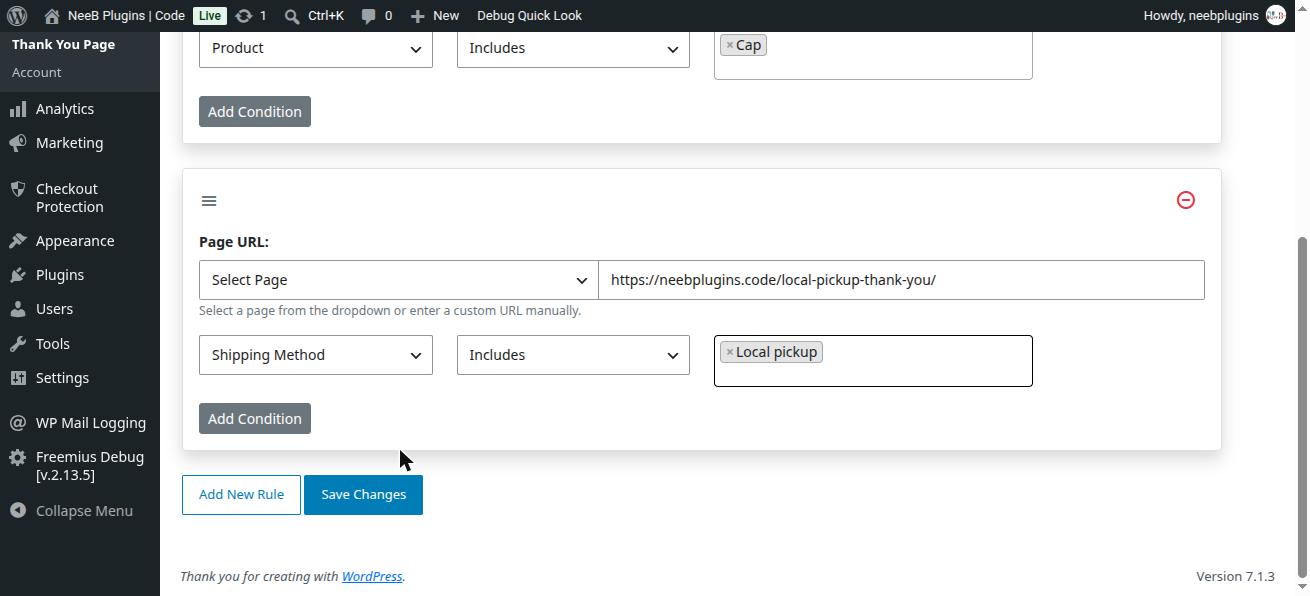
4. Local Pickup Orders
Redirect customers who choose Local Pickup as their shipping method to a page with pickup instructions, store hours, and address details.
- Page URL:
https://neebplugins.code/local-pickup-thank-you/ - Conditions:
- Shipping Method: Includes “Local pickup”
Best Practices for Creating Rules
- Simple Rules First: Start by creating simple rules and test how they work before adding more complex conditions.
- Prioritize Important Conditions: Focus on conditions that align with your business goals, such as rewarding specific customers or targeting certain product categories.
- Avoid Overlapping Rules: Make sure your rules do not conflict or overlap, as this may cause unintended redirection behavior.
- Test Each Rule: After creating a rule, test it by completing an order to ensure customers are redirected correctly based on the conditions.
This concludes the detailed documentation for the Thank You Page Rules in the Thank You Page for WooCommerce PRO plugin. By using these flexible rules, you can create tailored post-purchase experiences for your customers based on their specific order attributes.